
In a previous post, I described how I set up Pages CMS as a quicker editing path alongside Org mode. Links and photos are the two things I most often share from my phone, so I wanted posting them to take almost no effort. Ideally, I could start from the iOS Share Sheet to produce a new post.
To achieve this, I built two iOS Shortcuts that send links and photos to corresponding custom Netlify Functions. The functions create files in GitHub, from where Hugo and Blowfish render them like any other post. The Shortcuts are linked below.
Post Link
Get ShortcutPost Photos
Get ShortcutThis is a tour of my setup rather than a plug-and-play recipe! It’s specific to my setup with GitHub and Netlify. To adapt it, you will need to understand the pieces, configure each function’s URL and shared secret in its Shortcut, along with the GitHub credentials and target branch in Netlify.
One publishing pipeline, different entry points#
My longer articles still live in content-org/zzamboni.org and are exported by ox-hugo to content/post/. Shorter posts start in Pages CMS or in a Shortcut.
At build time, the Hugo mounts make content-pagescms/ and content-photos/ appear under content/post/. Hugo sees them all as posts, while each source stays in the place that makes sense for editing it.
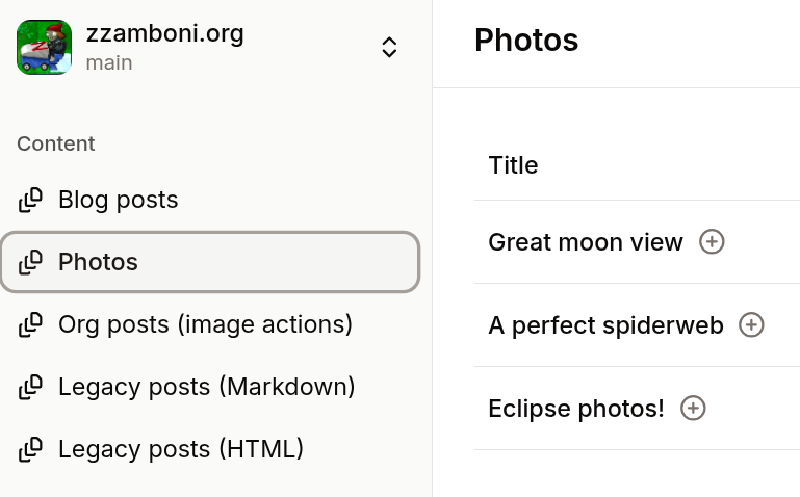
For cosmetic reasons, I configured my Blog listing to exclude photo posts (see layouts/post/list.html). Photos have their own Photos section (which is simply a link to the photos tag) and a separate column on the homepage (implemented in layouts/partials/home/feeds.html). I can also edit links and photos in Pages CMS; photos have their own Pages CMS collection that uses its image-management features.
The Shortcuts call two custom Netlify Functions, one for Links and one for Photos. Each request uses a shared secret for authorization, and the functions use a GitHub token to write the new files. I keep those credentials in Netlify’s environment, not in the repository.
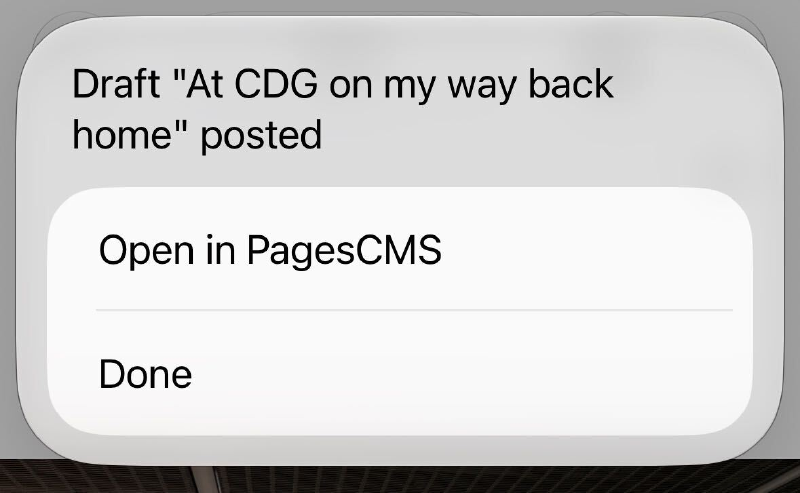
After posting, each function returns the new post’s title and an edit URL. The Shortcut can offer to open the post in Pages CMS. New posts default to drafts, though I can change that in the Shortcuts (I have mine configured to publish directly to reduce friction even more).
A link is a post with some special behavior#
The linkblog function accepts a URL and optional title, commentary, summary, date, tags, and draft setting. If I provide only commentary or only a summary, it uses that text for both; if I provide both, it keeps them separate. When I leave the title empty, it tries the linked page’s metadata and falls back to the hostname.
The function writes a small Markdown file with TOML front matter in content-pagescms/, including externalUrl and the linky tag.
On a Hugo list page (for example Links), link posts go straight to their externalUrl (the linked page). I prefer that behavior when scanning links, since one tap takes me to the thing I saved. There is still a local post page which shows my commentary if any (for example Pages CMS). On that page, a callout displays the full external URL near the top, so the destination is visible there too.
I wanted link entries to look different from ordinary articles. A custom list partial adds a Link badge, domain, and tags, while custom CSS gives the entry a distinct layout. Instead of a large feature image, it gets a small site icon near the top.
A GitHub Actions workflow fetches and caches favicons for link posts in the repository. If it cannot find an icon, the template shows a globe.
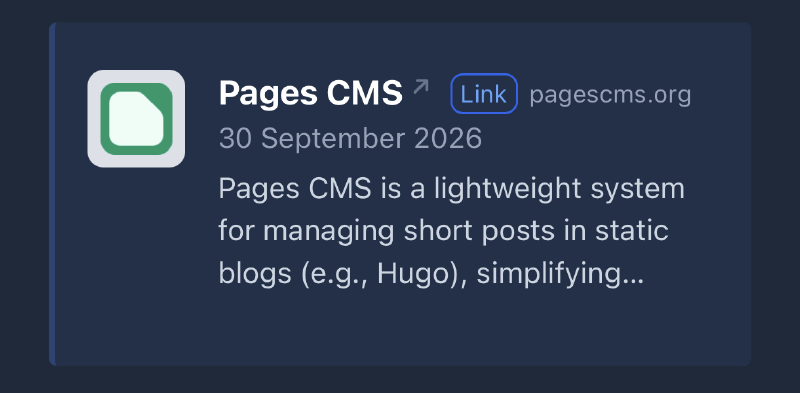
The post body can be just a line or two of my own commentary. When both commentary and summary are blank, an enrichment workflow tries to fill the summary from the linked article later. I will describe that workflow and its limits in an upcoming article.
Photos as first-class content#
The photo Shortcut resizes and encodes shared images, then asks me for a title and optional commentary. The photoblog function validates each image and removes embedded location metadata before uploading it.
The function creates a post bundle under content-photos/ and stores the image files under static/img/photos/. It records the image paths in a photos list in the post’s front matter. For a post with one photo, that looks like this:
photos = ["/img/photos/2026-11-22-at-cdg-on-my-way-back-home-a9ce8f7e/feature.jpg"]This setup lets me use Pages CMS’s image-management interface for photo posts:
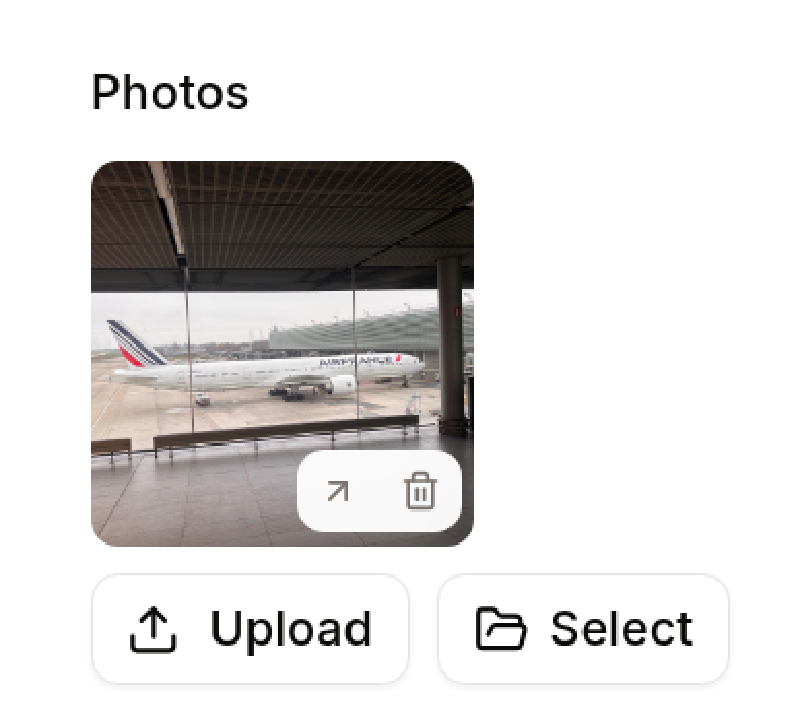
The function also adds the photos tag. The post and its images are added in the same Git commit.
Blowfish handles the gallery layout. I use GLightbox to bring all the galleries and standalone photos in an article together, with full-size images and captions where available. It works with touch and keyboard controls, so I can browse an entire post’s photos without opening and closing each one separately.
What this setup buys me#
These are focused entry points into my existing publishing system. I can start a link or photo in the Share Sheet, review the resulting draft in Pages CMS, and publish it without changing how I write longer articles. Hugo still builds the site as static pages and images.
There are tradeoffs: the phone has to resize photos before upload, and I choose to store the media in Git. For my personal site, the convenience of one-tap capture and a reviewable Git history is worth that bit of plumbing.
If you want to adapt this setup, start with the link and photo functions, the Pages CMS configuration, and the Shortcuts linked above. The details will keep evolving (I’m an eternal tinkerer after all), but the basic flow feels right to me: capture on the device I have in hand, then keep the files where the rest of my site already lives.